
Help Desk Onboarding

Welcome aboard. Let's get your computer protected.

Your organization has engaged Torchsec Technologies to secure and support your devices. The first step takes about two minutes: install the Torchsec RMM agent on your work computer. It's also how you'll reach us for support from now on.

Step 1 · Install your agent

Install the Torchsec RMM agent

Pick your operating system. Use the button to download and run the installer, or copy the one-line command if you prefer the terminal. If a prompt asks for permission to make changes, allow it — the installer finishes on its own.

Your device

Windows

Windows 10 & 11 · work computers

Download for Windows →
  1. Click the button, then open the downloaded file.
  2. If Windows asks for permission, click Yes.
  3. The installer runs and closes itself — this Torchsec icon Torchsec RMM tray icon appears by the clock.
Or run in PowerShell

(New-Object System.Net.WebClient).DownloadFile("https://concord.rmm.datto.com/download-agent/windows/5f37af86-1941-4637-a794-757e51210763", "$env:TEMP/AgentInstall.exe"); start-process "$env:TEMP/AgentInstall.exe"
Your device

macOS

Apple silicon & Intel Macs

Download for macOS →
  1. Download opens a .zip — or paste the command below in Terminal.
  2. When macOS asks for your password, enter it to allow the install.
  3. The agent installs silently in the background.

Or run in Terminal

curl -o Agent.zip "https://concord.rmm.datto.com/download-agent/mac/5f37af86-1941-4637-a794-757e51210763"; unzip Agent.zip; sudo installer -pkg "AgentSetup/CAG.pkg" -target /
Your device

Linux

Debian, Ubuntu, RHEL & more

Download for Linux →
  1. Open a terminal on the machine you want to protect.
  2. Paste the command below and press Enter.
  3. Enter your password if prompted — the agent installs automatically.

Run in Terminal

sudo wget -O setup.sh "https://concord.rmm.datto.com/download-agent/linux/5f37af86-1941-4637-a794-757e51210763" && sudo sh setup.sh

See it in action

Pick your operating system, then click Next to step through the install, start to finish.

onboarding.torchsec.com
Install the Torchsec RMM agent
Windows 10 & 11 · work computers
Download for Windows →
onboarding.torchsec.com
Your download is starting…
AgentInstall.exe
Downloaded
Open
User Account Control
Do you want to allow this app to make changes to your device?
Torchsec RMM Agent
Verified publisher · Datto, Inc.
Installing…
Nothing to click. The installer runs on its own and closes when it's finished.
You're all set
Done — the agent is running.
There it is! Click it anytime for support.
˄2:14 PM
7/8/2026
onboarding.torchsec.com
Install the Torchsec RMM agent
Apple silicon & Intel Macs
Download for macOS →
Install Torchsec RMM Agent
• Introduction
• Destination
• Installation
• Summary
Welcome to the Torchsec RMM Agent Installer
This will install the Torchsec RMM agent so your IT team can support and protect this Mac. Click Continue to begin.
Installer wants to install new software.
Enter your password to allow this.
••••••••
Installing…
The agent installs on its own in the background. Nothing to click.
There it is — in the menu bar. Click it anytime for support.
user@workstation: ~
user@workstation:~$
user@workstation: ~
user@workstation:~$ sudo wget -O setup.sh "https://concord.rmm.datto.com/download-agent/linux/…" && sudo sh setup.sh
user@workstation: ~
user@workstation:~$ sudo wget -O setup.sh "…" && sudo sh setup.sh [sudo] password for user: (your typing is hidden — that's normal)
user@workstation: ~
Downloading agent… 100% Installing Torchsec RMM agent… ✓ Agent installed. Service started. user@workstation:~$
STEP 1 OF 5
On this page, click the red Download for Windows button.

Step 2 · Keep this handy

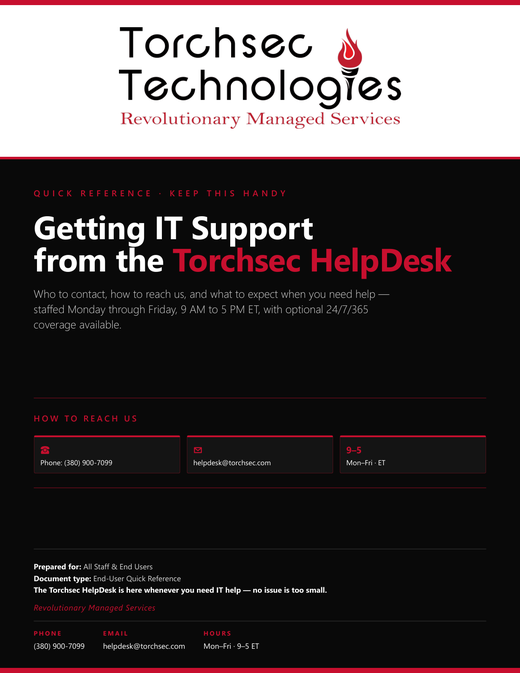
First page of the Torchsec Help Desk Quick Reference

Torchsec Help Desk Quick Reference

A one-page plain-language guide: how to open a ticket from your computer, when to call, and what to expect from us. Save or print it.

Step 3 · How to reach us

Opening a support ticket

Once the agent is installed, the fastest way to get help is right from your computer.

Torchsec RMM tray icon

1 · Click the icon

Look for this icon by the clock, bottom-right (click the ^ arrow first if it's hidden), and click it.

2 · Choose an option

Pick “Take screenshot and request support” when the problem is on screen, or “Request support.”

3 · Submit

Fill in the short form — summary, details, urgency, contact info — and click Submit.

Need help or have questions?

Torchsec Help Desk — Monday to Friday, 9:00 AM–5:00 PM EST